





Characteristics 

ALS - Any List Scroller is the jQuery plugin by musings.it to scroll any list, of any dimension, with any content. Try it!
- It is surprisingly easy to use
- It works on any kind of list
- List elements can be texts, images, anything (read the instructions below)
- List items must not have a fixed size, or equal to each other
- The list can be scrolled horizontally or vertically
- Scrolling can be simple or infinite (circular)
- Scrolling can be manual or automatic (autoscroll)
- You can set the number of visible items
- You can set the scrolling step
- You can set the starting item (new from v.1.1)
- You can put more than one ALS in a single page (multiple instance)
- You can set the scrolling speed and "easing" function (new from v.1.3)
- It has "swipe" support for touch devices (new from v.1.4)
- It is responsive by design (new from v.2.1)
Version
Version v.2.1 date: 11.05.2020 - responsive by design; code completely rewritten for better performance
Version v.1.7 date: 17.09.2014 - minor bug fixes on configuration controls and timeout reset on click for autoscroll
Version v.1.6 date: 17.06.2014 - minor bug fix on "swipe" for non circular scrolling
Version v.1.5 date: 21.05.2014 - minor revision of "destroy" method and touch support
Version v.1.4 date: 25.03.2014 - added "swipe" support for touch devices
Version v.1.3 date: 04.02.2014 - added "speed" and "easing" options; various minor changes
Version v.1.2 date: 04.09.2013 - "destroy" method rewritten for single instance management
Version v.1.1 date: 16.04.2013 - added "start_from" option
Version v.1.0 date: 14.06.2012 - initial release
Help
If you need any help, go on reading the documentation in this page, download the commented code, or contact us, we'll be happy to help you.
Personalization
Would you like a personalized version of ALS? Contact us ant tell us about your peoject, we'll find a solution that suits your needs.
Demo
Demo 1
Simple horizontal scrolling, type of scrolling: manual, visible elements: 3, scrolling step: 2

 orange
 apple
apple banana
 blueberry
 watermelon
 cherry
 strawberry
 avocado
 pear
pear pineapple
 papaya
 raspberry

Look at the code for this demo 
HTML
<div class="als-container" id="demo1">
  <span class="als-prev"><img src="images/thin_left_arrow_333.png" alt="prev" title="previous" /></span>
  <div class="als-viewport">
    <ul class="als-wrapper">
      <li class="als-item"><img src="images/fruits/arancio.png" alt="orange" title="orange" />orange</li>
      <li class="als-item"><img src="images/fruits/mela.png" alt="apple" title="apple" />apple</li>
      <li class="als-item"><img src="images/fruits/banana.png" alt="banana" title="banana" />banana</li>
      <li class="als-item"><img src="images/fruits/mirtillo.png" alt="blueberry" title="blueberry" />blueberry</li>
      <li class="als-item"><img src="images/fruits/anguria.png" alt="watermelon" title="watermelon" />watermelon</li>
      <li class="als-item"><img src="images/fruits/ciliegia.png" alt="cherry" title="cherry" />cherry</li>
      <li class="als-item"><img src="images/fruits/fragola.png" alt="strawberry" title="strawberry" />strawberry</li>
      <li class="als-item"><img src="images/fruits/avocado.png" alt="avocado" title="avocado" />avocado</li>
      <li class="als-item"><img src="images/fruits/pera.png" alt="pear" title="pear" />pear</li>
      <li class="als-item"><img src="images/fruits/ananas.png" alt="pineapple" title="pineapple" />pineapple</li>
      <li class="als-item"><img src="images/fruits/papaya.png" alt="papaya" title="papaya" />papaya</li>
      <li class="als-item"><img src="images/fruits/lampone.png" alt="raspberry" title="raspberry" />raspberry</li>
    </ul>
  </div>
  <span class="als-next"><img src="images/thin_right_arrow_333.png" alt="next" title="next" /></span>
</div>
CSS
/************************************* * generic styling for ALS elements ************************************/ .als-container { position: relative; width: 100%; margin: 0px auto; z-index: 0; } .als-viewport { position: relative; overflow: hidden; margin: 0px auto; } .als-wrapper { position: relative; list-style: none; } .als-item { position: relative; display: block; text-align: center; cursor: pointer; float: left; } .als-prev, .als-next { position: absolute; cursor: pointer; clear: both; z-index: 10; }/************************************* * specific styling for #demo1 ************************************/ #demo1 { margin: 40px auto; } #demo1 .als-item { margin: 0px 5px; padding: 4px 0px; min-height: 120px; min-width: 100px; text-align: center; } #demo1 .als-item img { display: block; margin: 0 auto; vertical-align: middle; } #demo1 .als-prev, #demo1 .als-next { top: 40px; } #demo1 .als-prev { left: 2%; } #demo1 .als-next { right: 2%; }
ALS configuration
$("#demo1").als({
	visible_items: 3,
	scrolling_items: 2,
	orientation: "horizontal",
	circular: "no",
	autoscroll: "no"
});
Demo 2
Infinite horizontal scrolling, type of scrolling: manual, visible elements: 4, scrolling step: 1
- orange
- apple
- banana
- blueberry
- watermelon
- cherry
- strawberry
- avocado
- pear
- pineapple
- papaya
- raspberry
Look at the code for this demo
HTML
<div class="als-container" id="demo2">
  <span class="als-prev"><img src="images/thin_left_arrow_333.png" alt="prev" title="previous" /></span>
  <div class="als-viewport">
    <ul class="als-wrapper">
      <li class="als-item"><img src="images/fruits/arancio.png" alt="orange" title="orange" />orange</li>
      <li class="als-item"><img src="images/fruits/mela.png" alt="apple" title="apple" />apple</li>
      <li class="als-item"><img src="images/fruits/banana.png" alt="banana" title="banana" />banana</li>
      <li class="als-item"><img src="images/fruits/mirtillo.png" alt="blueberry" title="blueberry" />blueberry</li>
      <li class="als-item"><img src="images/fruits/anguria.png" alt="watermelon" title="watermelon" />watermelon</li>
      <li class="als-item"><img src="images/fruits/ciliegia.png" alt="cherry" title="cherry" />cherry</li>
      <li class="als-item"><img src="images/fruits/fragola.png" alt="strawberry" title="strawberry" />strawberry</li>
      <li class="als-item"><img src="images/fruits/avocado.png" alt="avocado" title="avocado" />avocado</li>
      <li class="als-item"><img src="images/fruits/pera.png" alt="pear" title="pear" />pear</li>
      <li class="als-item"><img src="images/fruits/ananas.png" alt="pineapple" title="pineapple" />pineapple</li>
      <li class="als-item"><img src="images/fruits/papaya.png" alt="papaya" title="papaya" />papaya</li>
      <li class="als-item"><img src="images/fruits/lampone.png" alt="raspberry" title="raspberry" />raspberry</li>
    </ul>
  </div>
  <span class="als-next"><img src="images/thin_right_arrow_333.png" alt="next" title="next" /></span>
</div>
CSS
/************************************* * generic styling for ALS elements ************************************/ .als-container { position: relative; width: 100%; margin: 0px auto; z-index: 0; } .als-viewport { position: relative; overflow: hidden; margin: 0px auto; } .als-wrapper { position: relative; list-style: none; } .als-item { position: relative; display: block; text-align: center; cursor: pointer; float: left; } .als-prev, .als-next { position: absolute; cursor: pointer; clear: both; z-index: 10; }/************************************* * specific styling for #demo2 ************************************/ #demo2 { margin: 40px auto; } #demo2 .als-item { margin: 0px 5px; padding: 4px 0px; min-height: 120px; min-width: 100px; text-align: center; } #demo2 .als-item img { display: block; margin: 0 auto; vertical-align: middle; } #demo2 .als-prev, #demo2 .als-next { top: 40px; } #demo2 .als-prev { left: 2% } #demo2 .als-next { right: 2%; }
ALS configuration
$("#demo2").als({
	visible_items: 4,
	scrolling_items: 1,
	orientation: "horizontal",
	circular: "yes",
	autoscroll: "no"
});
Demo 3
Infinite horizontal scrolling, type of scrolling: automatic, visible elements: 4, scrolling step: 2, interval: 4 seconds
- orange
- apple
- banana
- blueberry
- watermelon
- cherry
- strawberry
- avocado
- pear
- pineapple
- papaya
- raspberry
Look at the code for this demo
HTML
<div class="als-container" id="demo3">
  <span class="als-prev"><img src="images/thin_left_arrow_333.png" alt="prev" title="previous" /></span>
  <div class="als-viewport">
    <ul class="als-wrapper">
      <li class="als-item"><img src="images/fruits/arancio.png" alt="orange" title="orange" />orange</li>
      <li class="als-item"><img src="images/fruits/mela.png" alt="apple" title="apple" />apple</li>
      <li class="als-item"><img src="images/fruits/banana.png" alt="banana" title="banana" />banana</li>
      <li class="als-item"><img src="images/fruits/mirtillo.png" alt="blueberry" title="blueberry" />blueberry</li>
      <li class="als-item"><img src="images/fruits/anguria.png" alt="watermelon" title="watermelon" />watermelon</li>
      <li class="als-item"><img src="images/fruits/ciliegia.png" alt="cherry" title="cherry" />cherry</li>
      <li class="als-item"><img src="images/fruits/fragola.png" alt="strawberry" title="strawberry" />strawberry</li>
      <li class="als-item"><img src="images/fruits/avocado.png" alt="avocado" title="avocado" />avocado</li>
      <li class="als-item"><img src="images/fruits/pera.png" alt="pear" title="pear" />pear</li>
      <li class="als-item"><img src="images/fruits/ananas.png" alt="pineapple" title="pineapple" />pineapple</li>
      <li class="als-item"><img src="images/fruits/papaya.png" alt="papaya" title="papaya" />papaya</li>
      <li class="als-item"><img src="images/fruits/lampone.png" alt="raspberry" title="raspberry" />raspberry</li>
    </ul>
  </div>
  <span class="als-next"><img src="images/thin_right_arrow_333.png" alt="next" title="next" /></span>
</div>
CSS
/************************************* * generic styling for ALS elements ************************************/ .als-container { position: relative; width: 100%; margin: 0px auto; z-index: 0; } .als-viewport { position: relative; overflow: hidden; margin: 0px auto; } .als-wrapper { position: relative; list-style: none; } .als-item { position: relative; display: block; text-align: center; cursor: pointer; float: left; } .als-prev, .als-next { position: absolute; cursor: pointer; clear: both; z-index: 10; }/************************************* * specific styling for #demo3 ************************************/ #demo3 { margin: 40px auto; } #demo3 .als-item { margin: 0px 5px; padding: 4px 0px; min-height: 120px; min-width: 100px; text-align: center; } #demo3 .als-item img { display: block; margin: 0 auto; vertical-align: middle; } #demo3 .als-prev, #demo3 .als-next { top: 40px; } #demo3 .als-prev { left: 2%; } #demo3 .als-next { right: 2%; }
ALS configuration
$("#demo3").als({
	visible_items: 5,
	scrolling_items: 2,
	orientation: "horizontal",
	circular: "yes",
	autoscroll: "yes",
	interval: 4000
});
Demo 4
Simple horizontal scrolling, type of scrolling: manual, visible elements: 4, scrolling step: 2, start from: 2 (third element, zero based)
- orange
- apple
- banana
- blueberry
- watermelon
- cherry
- strawberry
- avocado
- pear
- pineapple
- papaya
- raspberry
Look at the code for this demo
HTML
<div class="als-container" id="demo4">
  <span class="als-prev"><img src="images/thin_left_arrow_333.png" alt="prev" title="previous" /></span>
  <div class="als-viewport">
    <ul class="als-wrapper">
      <li class="als-item"><img src="images/fruits/arancio.png" alt="orange" title="orange" />orange</li>
      <li class="als-item"><img src="images/fruits/mela.png" alt="apple" title="apple" />apple</li>
      <li class="als-item"><img src="images/fruits/banana.png" alt="banana" title="banana" />banana</li>
      <li class="als-item"><img src="images/fruits/mirtillo.png" alt="blueberry" title="blueberry" />blueberry</li>
      <li class="als-item"><img src="images/fruits/anguria.png" alt="watermelon" title="watermelon" />watermelon</li>
      <li class="als-item"><img src="images/fruits/ciliegia.png" alt="cherry" title="cherry" />cherry</li>
      <li class="als-item"><img src="images/fruits/fragola.png" alt="strawberry" title="strawberry" />strawberry</li>
      <li class="als-item"><img src="images/fruits/avocado.png" alt="avocado" title="avocado" />avocado</li>
      <li class="als-item"><img src="images/fruits/pera.png" alt="pear" title="pear" />pear</li>
      <li class="als-item"><img src="images/fruits/ananas.png" alt="pineapple" title="pineapple" />pineapple</li>
      <li class="als-item"><img src="images/fruits/papaya.png" alt="papaya" title="papaya" />papaya</li>
      <li class="als-item"><img src="images/fruits/lampone.png" alt="raspberry" title="raspberry" />raspberry</li>
    </ul>
  </div>
  <span class="als-next"><img src="images/thin_right_arrow_333.png" alt="next" title="next" /></span>
</div>
CSS
/************************************* * generic styling for ALS elements ************************************/ .als-container { position: relative; width: 100%; margin: 0px auto; z-index: 0; } .als-viewport { position: relative; overflow: hidden; margin: 0px auto; } .als-wrapper { position: relative; list-style: none; } .als-item { position: relative; display: block; text-align: center; cursor: pointer; float: left; } .als-prev, .als-next { position: absolute; cursor: pointer; clear: both; z-index: 10; }/************************************* * specific styling for #demo4 ************************************/ #demo4 { margin: 40px auto; } #demo4 .als-item { margin: 0px 5px; padding: 4px 0px; min-height: 120px; min-width: 100px; text-align: center; } #demo4 .als-item img { display: block; margin: 0 auto; vertical-align: middle; } #demo4 .als-prev, #demo4 .als-next { top: 40px; } #demo4 .als-prev { left: 2%; } #demo4 .als-next { right: 2%; }
ALS configuration
$("#demo4").als({
	visible_items: 7,
	scrolling_items: 2,
	orientation: "horizontal",
	circular: "yes",
	autoscroll: "no",
	start_from: 2
});
Demo 5 (new from v.2.1)
Simple horizontal scrolling, type of scrolling: manual, visible elements: "auto" (responsive), scrolling step: 2, start from: 0
- orange
- apple
- banana
- blueberry
- watermelon
- cherry
- strawberry
- avocado
- pear
- pineapple
- papaya
- raspberry
 kiwi
kiwi tangerine
 peach
peach grapes
Look at the code for this demo
HTML
<div class="als-container" id="demo5">
  <span class="als-prev"><img src="images/thin_left_arrow_333.png" alt="prev" title="previous" /></span>
  <div class="als-viewport">
    <ul class="als-wrapper">
      <li class="als-item"><img src="images/fruits/arancio.png" alt="orange" title="orange" />orange</li>
      <li class="als-item"><img src="images/fruits/mela.png" alt="apple" title="apple" />apple</li>
      <li class="als-item"><img src="images/fruits/banana.png" alt="banana" title="banana" />banana</li>
      <li class="als-item"><img src="images/fruits/mirtillo.png" alt="blueberry" title="blueberry" />blueberry</li>
      <li class="als-item"><img src="images/fruits/anguria.png" alt="watermelon" title="watermelon" />watermelon</li>
      <li class="als-item"><img src="images/fruits/ciliegia.png" alt="cherry" title="cherry" />cherry</li>
      <li class="als-item"><img src="images/fruits/fragola.png" alt="strawberry" title="strawberry" />strawberry</li>
      <li class="als-item"><img src="images/fruits/avocado.png" alt="avocado" title="avocado" />avocado</li>
      <li class="als-item"><img src="images/fruits/pera.png" alt="pear" title="pear" />pear</li>
      <li class="als-item"><img src="images/fruits/ananas.png" alt="pineapple" title="pineapple" />pineapple</li>
      <li class="als-item"><img src="images/fruits/papaya.png" alt="papaya" title="papaya" />papaya</li>
      <li class="als-item"><img src="images/fruits/lampone.png" alt="raspberry" title="raspberry" />raspberry</li>
    </ul>
  </div>
  <span class="als-next"><img src="images/thin_right_arrow_333.png" alt="next" title="next" /></span>
</div>
CSS
/************************************* * generic styling for ALS elements ************************************/ .als-container { position: relative; width: 100%; margin: 0px auto; z-index: 0; } .als-viewport { position: relative; overflow: hidden; margin: 0px auto; } .als-wrapper { position: relative; list-style: none; } .als-item { position: relative; display: block; text-align: center; cursor: pointer; float: left; } .als-prev, .als-next { position: absolute; cursor: pointer; clear: both; z-index: 10; }/************************************* * specific styling for #demo5 ************************************/ #demo5 { margin: 40px auto; } #demo5 .als-item { margin: 0px 5px; padding: 4px 0px; min-height: 120px; min-width: 100px; text-align: center; } #demo5 .als-item img { display: block; margin: 0 auto; vertical-align: middle; } #demo5 .als-prev, #demo4 .als-next { top: 40px; } #demo5 .als-prev { left: 2%; } #demo5 .als-next { right: 2%; }
ALS configuration
$("#demo5").als({
	visible_items: "auto",
	scrolling_items: 2,
	orientation: "horizontal",
	circular: "yes",
	autoscroll: "no",
	start_from: 0
});
Instructions
1. Structure
2. Basic HTML
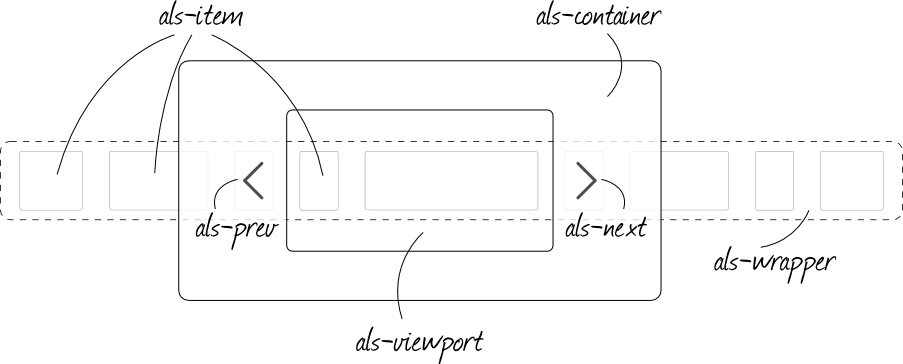
We have to define the elements illustrated in ALS Structure and give them the classes shown in the figure: als-container, als-viewport, als-wrapper and als-item. The only optional elements are als-prev and als-next and they become necessary only if a manual list scrolling is chosen.
als-wrapper and als-item can be classical list elements <ul> <li> or generic <div> elements.
<!-- define a container with class "als-container": this will be the object binded to ALS; we suggest to give it an ID
to retrieve it easily during ALS inizialization -->

<div class="als-container" id="my-als-list">

<!-- if you choose manual scrolling (which is set by default), insert <span> with class "als-prev"  and "als-next":
they define the buttons "previous" and "next"; within the <span> you can use images or simple text -->

  <span class="als-prev"><img src="images/prev.png" alt="prev" title="previous" /></span>

<!-- define a container with class "als-viewport": this will be the viewport for the list visible elements -->

  <div class="als-viewport">

<!-- define a container with class "als-wrapper": this will be the wrapper for the list elements,
it can be a classic <ul> element or even a <div> element -->

    <ul class="als-wrapper">

<!-- define the list elements, each must have class "als-item"; they can be classic <li> elements
or generic <div> elements and they can contain anything: text, images, ... -->

      <li class="als-item">orange</li> <!-- text only -->
      <li class="als-item"><img src="images/fruits/apple.png" alt="apple" title="apple" /></li> <!-- image -->
      <li class="als-item"><img src="images/fruits/banana.png" alt="banana" title="banana" />banana</li> <!-- image + text -->

    </ul> <!-- als-wrapper end -->
  </div> <!-- als-viewport end -->
  <span class="als-next"><img src="images/next.png" alt="next" title="next" /></span> <!-- "next" button -->
</div> <!-- als-container end -->
3. Basic CSS
The styling of the generic ALS elements reported below is strongly recommended. Various elements are then stylized at will to suit the position chosen (see the code of the demo).
If list elements contain images we suggest to add to the styling of als-item values for min-width and min-height (see the code of the demo).
/*****************************************************
 * generic styling for ALS elements: outer container
 ******************************************************/

.als-container {
	position: relative;
	width: 100%;
	margin: 0px auto;
	z-index: 0;
}

/****************************************
 * viewport styling
 ***************************************/

.als-viewport {
	position: relative;
	overflow: hidden;
	margin: 0px auto;
}

/***************************************************
 * wrapper styling
 **************************************************/

.als-wrapper {
	position: relative;
	/* if you are using a list with <ul> <li> */
	list-style: none;
}

/*************************************
 * item: single list element
 ************************************/

.als-item {
	position: relative;
	display: block;
	text-align: center;
	cursor: pointer;
	float: left;
}

/***********************************************
 * prev, next: buttons styling
 **********************************************/

.als-prev, .als-next {
	position: absolute;
	cursor: pointer;
	clear: both;
	z-index: 10;
}
4. Files to include
<!-- basic ALS css -->
<link rel="stylesheet" type="text/css" media="screen" href="path/css/als_style.css" />

<!-- your jQuery version -->
<script type="text/javascript" src="path/js/jquery-last.min.js" ></script>

<!-- your ALS version -->
<script type="text/javascript" src="path/js/jquery.als-2.1.min.js" ></script>
5. Basic inizialization
<!-- in our example the container has id="my-als-list" thus ALS is initialized like this -->

<script type="text/javascript">
	$(document).ready(function(){
		$("#my-als-list").als();
	});
</script>
6. Configurable options
visible_items (string or number)
It is the number of visible elements of the list. If set to "auto" calculates the max number of visible items based on the available space (responsive behaviour), otherwise if a number is given, it will be the max number of visible items independently from the available space.
Accepted values: "auto" or integers. Default value: "auto". Configuration example:
$("#my-als-list").als({
	visible_items: 4
});
scrolling_items (number)
It is the scrolling step of the list elements.
Accepted values: integers. Default value: 1. Configuration example:
$("#my-als-list").als({
	scrolling_items: 2
});
orientation (string)
It definers the list orientation: it can be horizontal or vertical.
Accepted values: "horizontal" and "vertical". Default value: "horizontal". Configuration example:
$("#my-als-list").als({
	orientation: "vertical"
});
circular (string)
It defines the list scrolling type: it can be simple or infinite (circular).
Accepted values: "yes" and "no". Default value: "no". Configuration example:
$("#my-als-list").als({
	circular: "yes"
});
autoscroll (string)
It defines how the scrolling starts: manually or automatically.
Please note: if autoscroll is set to "yes" also circular will be set to "yes".
Accepted values: "yes" and "no". Default value: "no". Configuration example:
$("#my-als-list").als({
	autoscroll: "yes"
});
interval (number)
It is the scrolling interval (in msec) when autoscroll is set to "yes".
Accepted values: integers. Default value: 5000. Configuration example:
$("#my-als-list").als({
	interval: 4000
});
direction (string)
It defines the scrolling direction when autoscroll is set to "yes".
Accepted values: "left" and "right" (if orientation is "horizontal"), "up" and "down" (if orientation is "vertical").
Default value: "left" ("up"). Configuration example:
$("#my-als-list").als({
	direction: "down"
});
start_from (number) [new from v.1.1]
Sets the first visible items in the list.
Accepted values: integers. If the value is greater than the difference between the total number of items and the number of visible items, it is automatically reset to 0.
Default value: 0 (first element). Configuration example:
$("#my-als-list").als({
	start_from: 2
});
speed (number) [new from v.1.3]
Sets the scrolling speed (in msec).
Accepted values: integers. Default value: 600. Configuration example:
$("#my-als-list").als({
	speed: 400
});
easing (string) [new from v.1.3]
Sets the easing function for the scrolling animation.
Accepted values: "swing" and "linear". Default value: "swing". Configuration example:
$("#my-als-list").als({
	easing: "linear"
});
7. Multiple option example
In this example we have a maximum of 4 visible elements, the scrolling step is 2, list orientation is horizontal, list scrolling is infinite (circular) and starts automatically (autoscroll), the interval is 6 seconds, the scrolling speed is 400 msec, the easing function for scrolling animation is "linear", the scrolling direction is right and the first visible item is the second of the list.
$("#my-als-list").als({
	visible_items: 4,
	scrolling_items: 2,
	orientation: "horizontal",
	circular: "yes",
	autoscroll: "yes",
	interval: 6000,
	speed: 400,
	easing: "linear",
	direction: "right",
	start_from: 1
});
8. Known issues
- It is not possible to put an ALS list inside another ALS list.
- The actual code can be further optimized using service functions.
Downloads
Production [11.2 Kb]
Only the ALS code, no frills, minified and ready to be inserted in your code
DOWNLOAD v.2.1
Download current version [v.2.1]
Download previous version [v.1.7]
Development [39.4 Kb]
ALS code not minified and heavily commented: to modify and hack as you wish
DOWNLOAD v.2.1
Download current version [v.2.1]
Download previous version [v.1.7]
Would you like to help us?
ALS was born as a jQuery plugin released for free and we wish it were always so! Did you like it? Is it useful for one of your projects? Consider donating!
Any amount will help us maintaining and enhancing ALS code, adding new features and keeping ALS free for everyone. Thank you! :)
Support & Contacts
Would you like a custom ALS version?
Did you find a bug or would you like to suggest us a modification or a new feature?
Would you like to discuss with us your new web project?
Send us an email, contact us on Twitter or use this form, we'll be happy to talk to you!
 musings@musings.it
 @musingspuntoit
By sending the message you say that you read our privacy policy.
Did you like ALS?
Help us spread the word!
 Buy us a coffee
Would you like to see other jQuery plugins by musings.it?
We developed an HTML5 content slider: μslider and its brand new compact brother Minimus slider (mini muslider)
We developed a magnifying glass: mlens
We developed a wonderful jQuery countdown: MCountDown
Have a look at our portfolio on 
Check out our new project 
ALS in the wild
Who liked ALS so far
- 07.01.2014 ALS was among the best 2013 jQuery plugins according to jquery4u.com
- 23.12.2013 ALS was featured on gbtags.com
- 18.11.2013 ALS was featured on catswhocode.com
- 02.10.2013 ALS was among the best 30 jQuery plugins by webtoolsdepot.com
- 20.08.2013 ALS was among the designers and developers resources of ewebdesign.com
- 22.07.2013 ALS was featured on csdn.net
- 22.05.2013 ALS was featured on admin10000.com
- 16.05.2013 ALS was featured on apkbus.com
- 16.05.2013 ALS was featured on ithome.com
- 05.03.2013 ALS was reviewed by tekzoom.com.br
- 20.02.2013 ALS was reviewed by unheap.com
- 19.02.2013 ALS was choosen by bestfreewebresources.com
- 01.02.2013 ALS was featured on graphicdesignjunction.com
- 21.01.2013 ALS was featured on y2graphic.com
- 19.01.2013 ALS was reviewed by designyourway.net
- 18.01.2013 ALS was reviewed by designbeep.com
- 12.01.2013 ALS was reviewed by splashnology.com
- 07.01.2013 ALS was reviewed by skytechgeek.com
- 31.12.2012 ALS was listed among the best 2012 plugins by amazingthins.in
- 26.12.2012 ALS was reviewed by the japanese blog open-open.com
- 26.12.2012 ALS was reviewed by the japanese blog iteye.com
- 19.12.2012 ALS was reviewed by juliusdesign.net
- 18.12.2012 ALS was listed among the best 2012 plugins by moretechtips.net
- 10.12.2012 ALS was listed among the Dicember news for designers by webdesignerdepot.com
- 10.12.2012 ALS was listed among the best 2012 jQuery plugins by the japanese blog w3cplus.com
- 07.12.2012 ALS was reviewed by the greek blog wdf.gr
- 06.12.2012 ALS was reviewed by webification.com
- 06.12.2012 ALS was reviewed by jquery-plugins.net
- 05.12.2012 ALS was reviewed by webresourcesdepot.com
- 30.11.2012 ALS was featured on the russian blog habrahabr.ru
- 29.11.2012 ALS was featured on designs.zfort.net
- 27.11.2012 ALS was featured on the cinese blog crazyfrom.com
- 27.11.2012 ALS was reviewed by 9px.ir
- 27.11.2012 ALS was featured on templates.com
- 27.11.2012 ALS was reviewed by art2code.com
- 26.11.2012 ALS was reviewed by front-endmagazine.com
- 26.11.2012 ALS was featured on designbeep.com
- 26.11.2012 ALS was reviewed by the Korean blog webstoryboy.tistory.com
- 26.11.2012 ALS was reviewed by dailysyntax.com
- 26.11.2012 ALS was featured on the French blog lafermeduweb.net
- 26.11.2012 ALS was reviewed from the Italian blog fedeweb.net
- 25.11.2012 ALS was reviewed from codevisually.com
- 22.11.2012 ALS was featured on the Japanese blog gunosy.com
- 21.11.2012 ALS was reviewed by the Japanese blog phpspot.org
- 20.11.2012 ALS was listed in the js script list by webscripts.softpedia.com
- 20.11.2012 ALS was reviewed by Greepit.com
- 19.11.2012 ALS was featured on jQuery Rain
- 18.11.2012 ALS was reviewed by creativeproject.wordpress.com
- 12.11.2012 ALS was reviewed by jquer.in
ALS customized
Are you a developer? Did you tweak ALS to your needs? Send us your version: we will try it and maybe link it in this new section!
- 10.03.2013 ALS v.1.0 customized by Benjamin by adding easing controls for the animation [download]
- 28.02.2013 ALS v.1.0 customized by Quentin by adding an easingOptions option [download]